Add a Free Website Chat Widget and Catch Visitors Before They Leave
Website Chat Widget, Live Chat Tool, Customer Support Chat
How a Website Chat Widget Can Turn Quiet Visitors into Engaged Clients
If you run a business or agency, you already know the frustration of “silent” website traffic. People visit, look around, and then disappear without ever reaching out. A simple Website Chat Widget can change that by turning passive browsing into real-time conversations that help you convert website visitors into paying clients—24/7. At Connextion, we see live chat as one of the fastest ways to capture and nurture leads before they slip away.
Why a Website Chat Widget Boosts Website Engagement for Businesses and Agencies
A Website Chat Widget puts a friendly, always-available helper on every page of your site. Instead of hunting for a contact form or phone number, visitors can ask questions in seconds. That small change dramatically increases website engagement for businesses and agencies because it removes friction and invites conversation right when interest is highest.
Immediate connection: Visitors get answers in real time instead of waiting for an email reply.
More conversations: People who would never fill out a form are often happy to send a quick chat message.
Higher conversions: A helpful Live Chat Tool lets you guide visitors to the right service, book a call, or close the sale on the spot.
For Connextion users, combining a Website Chat Widget with automated follow-up means every chat can seamlessly flow into your sales and marketing workflows, so you never lose track of a promising lead.
Step 1: Choosing a Free Chat Software Like Tawk.to
You don’t need a big budget to get started. Free chat software such as Tawk.to is more than enough for most businesses and agencies. When choosing a tool, look for:
Unlimited agents and chats so your whole team can help without extra cost.
Easy installation with a simple code snippet you can paste into your website.
Mobile apps and notifications so you can reply quickly, even on the go.
💡 Pro Tip: Make sure your chat tool integrates or can be connected with Connextion or your CRM, so every conversation turns into a trackable lead.
Step 2: Setting Up Your Account and Customizing the Widget
After you sign up for a free Tawk.to account, you’ll be guided through a quick setup. Add your website, choose your language, and then customize the look of your Website Chat Widget so it feels on-brand. Match your brand colors—like Connextion’s bold red, black, and white—and add your logo if available. A familiar, professional look builds trust and encourages visitors to start a conversation.
Step 3: Copying the Code Snippet and Adding It to Your Website
Once your widget is ready, the platform will generate a small JavaScript code snippet. This is the key to getting the Live Chat Tool on your site:
In your Tawk.to dashboard, navigate to the property for your website and find the “Install Widget” or “Widget Code” section.
Copy the entire code snippet provided—don’t change anything in it.
Paste it just before the closing
</body>tag of your website, or into your site’s global footer area.
If you use a website builder like WordPress, Wix, or Webflow, there’s usually a “Custom Code” or “Tracking Code” section where you can paste this once and have it show up on every page.
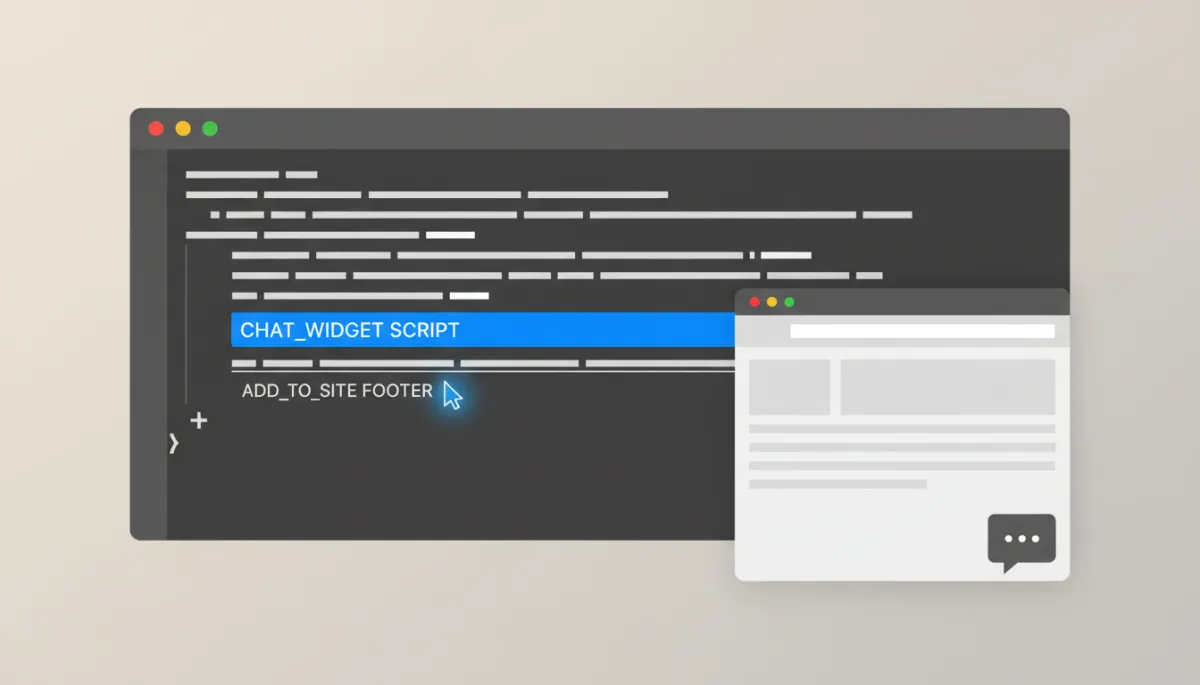
Adding a single script snippet instantly activates live chat across your entire site.
Step 4: Testing Your Live Chat Tool Before You Go All In
After installing the code, open your website in a private or incognito window. You should see the Website Chat Widget appear in the corner. Send yourself a test message and confirm that it shows up in your Tawk.to dashboard or mobile app. Test on desktop and mobile to ensure the Customer Support Chat feels smooth and easy to use everywhere.
💡 Pro Tip: Ask a teammate or friend to test the chat too. Fresh eyes can spot confusing wording or delays you might miss.
Turning Chats into Clients: Fast Replies, Away Messages, and Saved Replies
A Website Chat Widget is powerful, but how you use it matters. To truly convert website visitors into customers, focus on three simple habits:
Reply quickly: Aim to respond within a minute or two. Fast replies build trust and keep visitors from bouncing. Use mobile notifications so you or your team can answer even when you’re away from your desk.
Set a clear away message: When you’re offline, use an away message that sets expectations and still captures leads. For example: “Thanks for reaching out! Our team is currently offline, but we’ll reply within one business hour. Leave your email and we’ll follow up.” This keeps your Customer Support Chat honest and professional.
Use saved replies: Most chat tools let you store common responses. Create saved replies for FAQs like pricing, services, or booking a call. This lets you answer in seconds while still sounding human. You can then direct visitors into a Connextion-powered booking funnel or nurture sequence.
Make Your Website Work 24/7 and Convert Website Visitors Automatically
The real magic of a Website Chat Widget is that it keeps working even when you’re not. With an always-visible Live Chat Tool, proactive greetings, and smart away messages, your site can welcome visitors, answer basic questions, and capture contact details around the clock. Instead of quiet traffic that comes and goes unnoticed, you get a steady stream of real conversations you can follow up on through Connextion’s automation workflows.
For businesses and agencies focused on growth, this is a simple, low-cost way to increase website engagement, build trust, and convert website visitors into clients faster. Add a free chat solution like Tawk.to today, connect it with Connextion, and let your website start doing more of the selling for you—day and night.
Ready to scale your results? Book Your Discovery Call Today with Connextion to see how live chat plus automation can help you consistently connect with, capture, and close more clients.