Write 3 Ready-to-Send Replies and Answer Leads in Seconds
Business Replies, Lead Response Templates, Customer Communication
Turn Slow Lead Replies into One-Tap Professional Messaging
Most business owners are not ignoring leads; they are fighting friction. Between meetings, job sites, and constant context switching, even the most motivated teams struggle to send timely, consistent Business Replies. In this article, we will show you how to remove that friction with three short, warm Lead Response Templates and turn them into Text Shortcuts on your smartphone—so you can respond in seconds, not hours, and protect every opportunity.
Slow Replies Are a Friction Problem, Not a Motivation Problem
When agencies and growing businesses audit their lead flow, a familiar pattern emerges: leads are coming in, but responses are delayed or inconsistent. It is easy to blame this on laziness or lack of discipline. In reality, the issue is usually process friction, not intent. Owners and sales teams care deeply about Customer Communication, but they are overwhelmed by the steps required to send a simple, professional reply in the moment it matters most.
Consider the typical sequence: unlock phone, find the right app, open the conversation, think about what to say, type it out, edit it to sound professional, then finally press send. If you are on the move or in a meeting, that is enough friction to make you say, “I’ll do it later.” Later often turns into never—and the lead quietly slips away. Connextion sees this every day across industries: the intention to respond is there, but the process is too heavy for busy schedules.
By reducing the number of decisions and keystrokes required, you dramatically increase Reply Efficiency. Instead of composing from scratch, you tap a ready-made, warm, professional message tailored to the situation. That is the core idea behind using Lead Response Templates and Text Shortcuts: remove friction, not effort, and let your team follow through on the intention they already have.
The Three Core Situations Every Business Must Cover
While every business is unique, most leads first reach you through three primary channels. Building strong Business Replies for these scenarios will cover the majority of your day-to-day interactions:
Missed calls from new or existing leads
Website or form inquiries submitted online
Incoming text messages asking for pricing, availability, or information
For each of these, you want a reply that is short, warm, and clear. It should acknowledge the person, set expectations, and invite the next step. Below are example Lead Response Templates you can customize for your brand and integrate with Connextion or your existing workflow.
1. Missed Call Reply Template
Example template:
“Hi [First Name], this is [Your Name] from [Business]. I saw your missed call—sorry we couldn’t pick up right away. What’s the best time today to give you a quick call back?”
2. Website or Form Inquiry Reply Template
Example template:
“Hi [First Name], thanks for reaching out through our website about [service/offer]. I’d love to learn a bit more and see how we can help. Are you available for a quick call today or would you prefer to text here?”
3. Text Message Reply Template
Example template:
“Hi [First Name], great question about [topic]. Typical pricing for this starts around [range], depending on your needs. Would you like to schedule a quick call so we can give you an exact quote?”
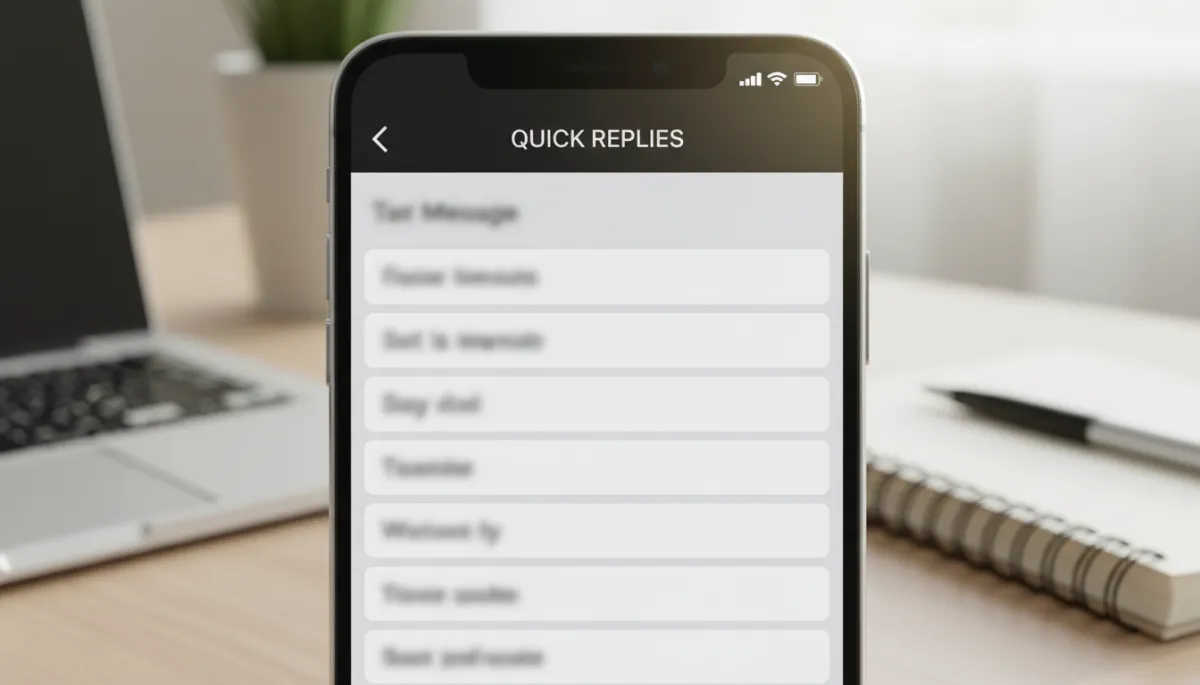
Pre-written Lead Response Templates turn good intentions into fast, consistent action.
Step 1: Write Short, Warm, and On-Brand Templates
Start by drafting each message in a notes app or document. Aim for 2–4 short sentences. Your goal is to sound human and approachable while maintaining Professional Messaging that reflects your brand. Connextion recommends the following structure for high-performing Business Replies:
Greeting + Name: Use the lead’s first name whenever possible to personalize the message.
Acknowledgment: Reference their call, form, or question so they feel heard and understood.
Reassurance: Briefly convey that helping them is a priority and that you have a process to support them.
Clear Next Step: Ask a simple question that moves the conversation forward, such as preferred time or channel.
Keep language plain and direct. Avoid jargon and long paragraphs. The objective is not to close the sale in one message; it is to open a conversation quickly and professionally. Once you are satisfied, create a final, polished version of each template with placeholders like [First Name] and [Business] so your team knows where to personalize.
Step 2: Save Your Templates Where Your Team Can Find Them
A template only improves Reply Efficiency if it is easy to access. At Connextion, we encourage clients to centralize their Lead Response Templates in two places: inside their communication platform and on their personal devices. For smartphones, begin with a simple shared document or note that all team members can access, labeled clearly, for example: “Missed Call Reply – Short,” “Website Lead Reply,” and “Pricing Text Reply.”
Ensure everyone understands the intention behind each template and when to use it. This consistency is key to Professional Messaging across your brand, especially for agencies and multi-location businesses. Once the master versions are approved, each team member can copy them into their own device settings to create one-tap Text Shortcuts.
Step 3: Turn Templates into One-Tap Text Shortcuts on Smartphones
Both iOS and Android allow you to create text replacement shortcuts—small codes that automatically expand into full messages. This is where friction disappears and Reply Efficiency dramatically improves. Below is a high-level process you can adapt for your specific device:
On iOS (iPhone)
Open Settings and go to General > Keyboard > Text Replacement.
Tap the + icon to add a new shortcut.
In Phrase, paste your full template (for example, the missed call reply).
In Shortcut, create a short trigger code, such as mcall, weblead, or txtprice.
Tap Save. Now, whenever you type that code in Messages, WhatsApp, or most apps, your full Professional Messaging template will appear, ready to send after you personalize the name.
On Android (General Approach)
Open your keyboard settings (often found under System > Languages & Input or within your keyboard app such as Gboard).
Look for Personal dictionary or Text shortcuts.
Add a new entry, pasting your full template into the main field and assigning a short, memorable shortcut such as mcall or lead1.
Save the entry. Now, when you type the shortcut in your messaging apps, Android will suggest the full phrase for quick insertion.
In both cases, you have effectively transformed a multi-step composition process into a one-tap, one-edit action. Combined with a platform like Connextion that centralizes Customer Communication, these Text Shortcuts ensure your team never has to start from a blank screen again.
How One-Tap Templates Prevent Stalled Responses and Lost Revenue
When leads do not receive a timely response, they rarely wait. They move on to competitors who answer first. By implementing Lead Response Templates and Text Shortcuts, you dramatically cut the delay between inquiry and first touch. A reply that once took five minutes of mental energy now takes less than ten seconds. That shift has a measurable impact on close rates and revenue, especially for agencies and high-intent service businesses.
Just as important, consistent Business Replies build trust. Prospects feel acknowledged, even if the full conversation happens later. Instead of stalled responses, you create a steady flow of quick touchpoints that keep your brand top of mind. Over time, this habit compounds into a reputation for responsive, professional Customer Communication—one of the most powerful differentiators in crowded markets.
💡 Key Takeaway: The faster you acknowledge a lead, the more likely they are to stay engaged. One-tap Professional Messaging is a small operational change with outsized impact on revenue.
Bringing It All Together with Connextion
While smartphone Text Shortcuts are a powerful starting point, the real leverage comes when your templates, automation, and channels are unified. Connextion is designed to do exactly that—capturing leads from calls, forms, and texts, triggering the right Lead Response Templates automatically, and giving your team a single place to manage every conversation. Your one-tap replies become part of a larger, AI-powered system that nurtures, books, and closes more clients before they slip away.
For businesses and agencies serious about growth, this is not just about convenience. It is about building a scalable, reliable communication engine that reflects your brand values: responsiveness, transparency, and customer success. You remove friction for your team, reduce missed opportunities, and create a predictable, professional experience for every lead who reaches out.
Next Step: Turn Your Templates into Revenue
If your team is replying slowly, it is almost never a motivation problem. It is a friction problem—and friction can be fixed. Start by drafting three short, warm Business Replies for missed calls, website inquiries, and text messages. Save them where your team can find them, then convert them into one-tap Text Shortcuts on every smartphone in your organization. From there, integrate those Lead Response Templates into a platform like Connextion to automate and scale your Customer Communication across every channel you use.
You will see the difference quickly: fewer stalled responses, faster first contact, and a noticeable lift in Reply Efficiency. Most importantly, you will stop losing good leads simply because it was “too hard” to reply in the moment. The system will do the heavy lifting, and your team can focus on what they do best—building relationships and closing business.
Ready to take this further and connect every call, form, and text into a single, automated growth engine? Book Your Discovery Call Today with Connextion to see how AI-powered Professional Messaging and automation can help you capture, nurture, and convert more leads—before they slip away.